How to make a drum kit skin for FL Studio
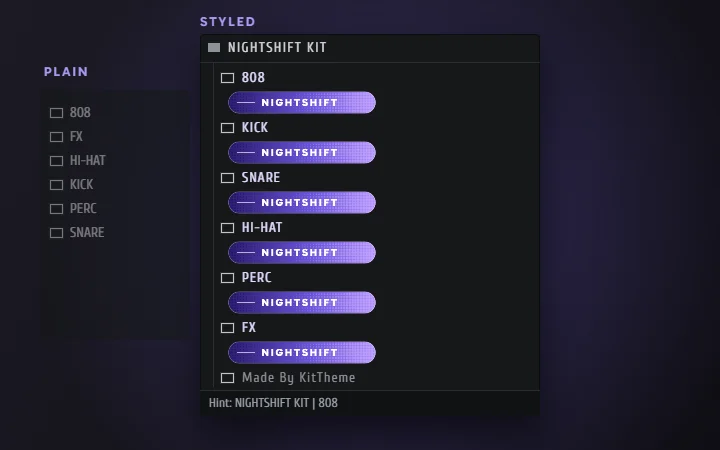
A drum kit skin is how your kit looks inside FL Studio’s Browser: a banner under each folder, folder colours, a logo, hover text and a cover you can post. You can make one in KitTheme without Photoshop, Illustrator or Canva.
What a drum kit skin is
When a producer opens your kit in FL Studio, they go through it in the Browser: a list of folders such as Kicks, Snares, 808s and Hi-Hats. Without a skin, every folder looks the same. A skin gives each one its own picture and colour, so the kit is easier to find your way around and carries your name every time someone opens it.
A skin only changes how the folders look. The audio files stay exactly as you made them.
What goes into one
- Banners. A long, thin picture under each folder name, usually showing the folder’s name in the kit’s style.
- A logo panel. A bigger picture with the kit’s name or logo.
- Folder colours. The colour each folder name takes in the Browser.
- Order and hover text. The order the folders appear in, and a short line FL Studio shows when someone hovers over a folder, like “Punchy kicks, tuned and labelled”.
- A cover. Square artwork for your store page and posts, in the same style as the skin. If it’s also going on a store or streaming page, the Cover Art Size Checker reads its size, shape and file type before you upload.
Make one in KitTheme
KitTheme is my tool for this: everything your drum kit needs except the sounds. Bring the sounds. KitTheme handles the look. The editor runs in a desktop browser; on a phone you can still search and download templates.
- Start a kit. Open the editor and import your kit folder, or start from a free template in the Template Hub. KitTheme reads the folder structure; your audio isn’t uploaded and isn’t part of the download.
- Style the folders. Set each folder’s colour, order and hover text, and watch the live preview, drawn like FL Studio’s Browser, change as you go.
- Design the artwork. Design mode builds the banners, the logo panel and the cover from layers such as text, shapes and your own pictures. Design one banner for the whole kit, then change any single folder’s banner on its own. Pictures you upload can be cropped in a visual crop box, so you choose exactly which part shows.
- Download. Save single pieces of artwork as PNGs, or export the whole skin as a ZIP with install instructions.
Downloading needs a free KitTheme account. Free downloads carry a small KitTheme credit, and a one-time payment removes it for that kit; the KitTheme page shows the current price.
To install, unzip the download and copy what’s inside its folder into your kit’s own folder, the one your samples are in, merging folders with the same name. Then right-click the kit in FL Studio’s Browser and choose Refresh.
Starting from a template
The Template Hub is a free library of kit skin templates. Each one is a starting look: artwork, folder names, colours, order and hover text. Templates share visuals only, never audio, and sample names are stripped from uploads. Open one, put in your kit’s name and artwork, and change the colours to fit. If you’ve made a skin you like, you can share it there from an account with a username; credit the creator when you build on someone else’s template.
Design tips for kit banners
- Design for the size FL shows. FL Studio draws a banner much smaller than the file you design. Keep the text to the folder name, set it bold, and judge it in the preview, not zoomed in on the canvas.
- Keep contrast against a dark Browser. FL’s Browser is dark by default, so a dark banner with dark text sinks into it.
- Vary one thing per folder. Keep the layout and fonts the same across the kit and change a colour, an icon or a picture, so the kit looks like one set and 808s are still easy to tell from Snares.
- Take the colours from your cover. Drop the cover into the Color Palette tool to pull its main colours as hex codes, and use them for folder names and banners so the skin and the cover match.
- Use artwork you own. Only use pictures and fonts you have the rights to, especially in a kit you sell.
How FL Studio shows the look
FL Studio reads a small settings file next to each folder that tells the Browser which picture, colour and hover text to show. KitTheme writes those files for you and puts them in the download beside the artwork, which is why installing is just copying folders into your kit.
Before you share the kit
- Each main folder has a banner and a colour, and hover text where it helps.
- The folder names on the banners read at FL’s size.
- The logo panel shows the kit’s name.
- The cover uses the same colours and type as the skin.
- All pictures and fonts are yours or licensed.
- You installed the download into a copy of the kit and opened it in FL Studio before sending it out.